How to Send High Quality Photos on WhatsApp Without Losing Quality
How to Send High Quality
Photos on WhatsApp
Stop sending blurry, compressed photos. Learn every method to send full-resolution images on WhatsApp — iPhone, Android, and desktop.
You take a stunning photo on your phone, send it on WhatsApp, and the recipient gets a blurry, pixelated mess. If this sounds familiar, you are not alone. WhatsApp automatically compresses every photo you send through the normal attachment method — sometimes reducing file size by over 70%, which destroys image quality in the process.
The good news is that WhatsApp now offers several ways to send photos at full or near-full resolution. Whether you are on iPhone, Android, or using WhatsApp Web, this guide walks you through every working method step by step. You can also find more WhatsApp tips and tools at whatolls.sbs.
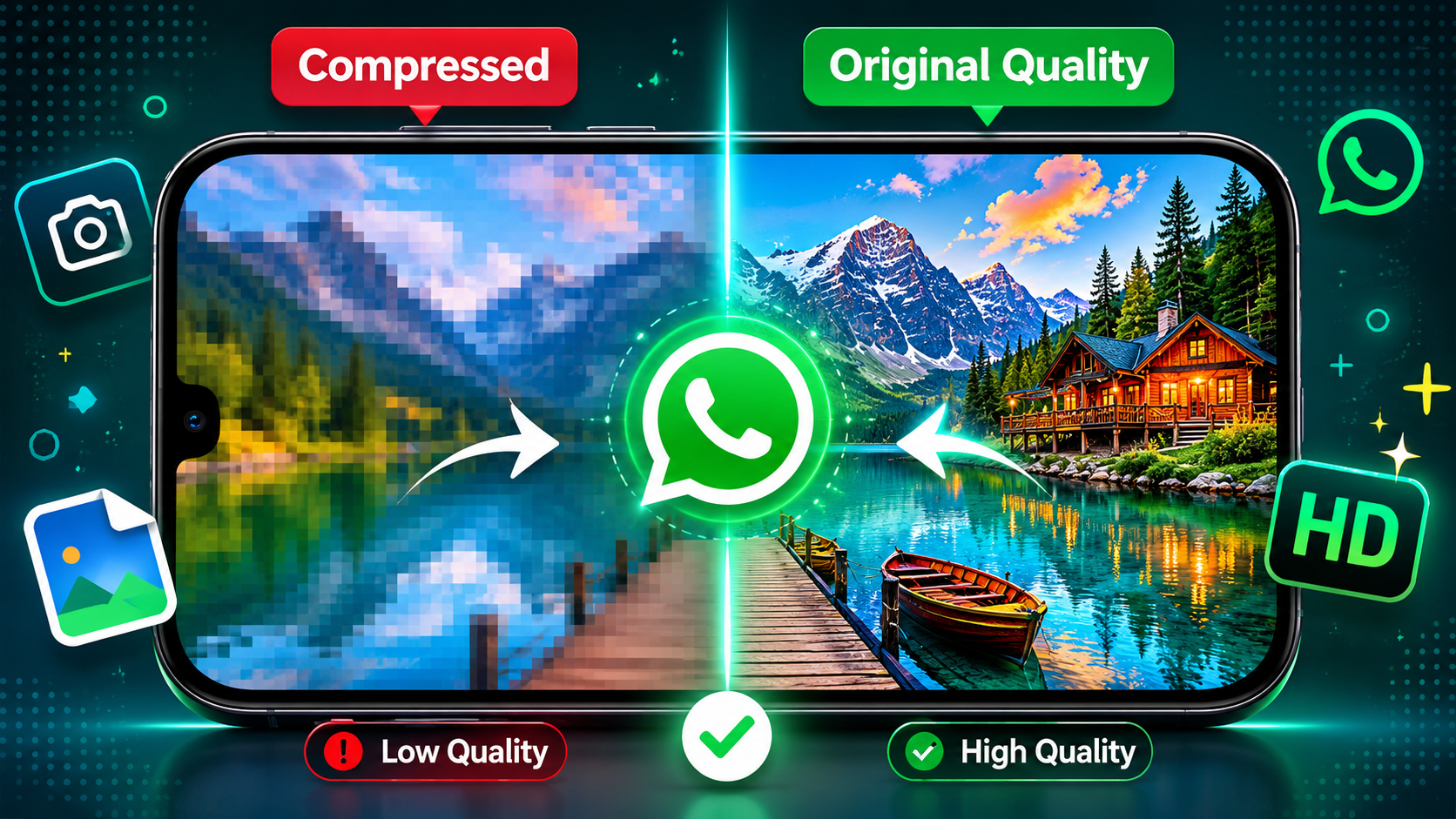
WhatsApp compresses automatically. Quality drops significantly. Fine details and colors are lost.
Full or near-full resolution preserved. Colors are vivid, details are sharp. Recipient sees exactly what you shot.
1. Why WhatsApp Compresses Your Photos
WhatsApp was designed to work on slow mobile data connections, particularly in developing markets where many of its users are based. To ensure fast delivery and reduce mobile data consumption, WhatsApp automatically compresses images before sending — often shrinking a 5MB photo down to 200–300KB.
This compression reduces resolution, crushes color depth, and introduces visible artifacts in areas with fine detail like fabric texture, hair, or distant landscapes. For casual messaging this is acceptable. For sharing professional photos, portfolio work, product images, or memories you want to preserve, it is completely unacceptable.
WhatsApp introduced an HD photo option in 2023 and has continued improving it. But the document method remains the most reliable way to send photos at 100% original resolution, and it works on every version of WhatsApp.
2. Method 1 — Use WhatsApp's HD Photo Feature
WhatsApp added a built-in HD sending option that lets you choose between standard quality and high quality before sending. This is the easiest method and works directly within the app on both iPhone and Android.
Open the chat and tap the attachment icon
Open WhatsApp and go to the chat where you want to send the photo. Tap the paperclip icon (Android) or the "+" icon (iPhone) next to the message bar.
Select "Photo and Video Library"
From the attachment menu, tap "Photo and Video Library" or "Gallery." Browse to find the photo you want to send and select it.
Look for the HD button in the top bar
Once the photo loads in the preview screen, look for an "HD" button at the top of the screen. Tap it to switch from Standard to HD quality.
Select "HD Quality" and send
A popup will appear offering Standard or HD Quality. Select HD Quality, then tap the send button (green arrow). The photo will be sent at significantly higher resolution than the default.
3. Method 2 — Send as a Document (Best Method)
This is the most reliable method and works on every version of WhatsApp. When you send a file as a document, WhatsApp does not compress it at all — the recipient gets the exact original file at 100% quality. This works for JPG, PNG, HEIC, RAW, and any other image format.
Open the chat and tap the attachment icon
Go to your WhatsApp chat and tap the paperclip (Android) or "+" icon (iPhone) to open the attachment menu.
Select "Document" — NOT "Photo and Video"
This is the critical step. Instead of choosing Photo and Video, tap "Document." This tells WhatsApp to treat your file as a document and skip all compression entirely.
Navigate to your photo file
A file browser will open. Navigate to your Photos, Downloads, or Files app to find your image. On iPhone you may need to tap "Browse" then navigate to your Photos folder.
Select the photo and send
Select your photo and tap Send. The image will appear in the chat as a downloadable document with its original filename. The recipient can tap to download and view it at full resolution.
4. Method 3 — Use WhatsApp Desktop or Web
WhatsApp's desktop app (Windows and Mac) and WhatsApp Web apply less aggressive compression than the mobile app when sending images. For many users, photos sent via desktop arrive noticeably sharper than those sent from a phone.
Open WhatsApp Web or Desktop App
Go to web.whatsapp.com on your browser, or open the WhatsApp Desktop app on Windows or Mac. Scan the QR code from your phone to link your account.
Open the chat and click the attachment icon
Find your desired chat, then click the paperclip icon in the message bar at the bottom of the chat window.
Drag and drop or select your photo
Either drag your photo file directly into the chat window, or use the file picker to navigate to your image. Select the photo you want to send.
Send and verify quality
Click the send button. Desktop-sent photos typically retain more detail than mobile-sent ones. For maximum quality, combine this method with the document sending approach.
5. Method 4 — Change WhatsApp Upload Quality Settings
WhatsApp has a built-in setting that controls the default upload quality for photos. Many users never find this setting. Changing it to Best Quality ensures that every photo you send going forward uses the highest available quality setting by default.
Open WhatsApp Settings
On iPhone tap Settings in the bottom tab bar. On Android tap the three-dot menu at the top right and select Settings.
Go to Storage and Data
Inside Settings, tap Storage and Data. This section controls how WhatsApp handles media uploads and downloads.
Find "Photo Upload Quality"
Scroll down to find Photo Upload Quality. You will see three options: Auto, Best Quality, and Data Saver.
Select "Best Quality" and save
Tap Best Quality. From now on, every photo you send through the standard photo attachment method will use the highest quality setting WhatsApp allows. Note this uses more data per photo.
6. Comparison of All Methods
Not sure which method to use? Here is a quick comparison to help you pick the right one for your situation.
| Method | Quality Level | Ease of Use | Best For |
|---|---|---|---|
| HD Photo Feature | High (not 100%) | Very Easy | Everyday high-quality sharing |
| Send as Document | 100% Original | Easy | Professional photos, portfolios |
| WhatsApp Desktop | High | Easy | Sending from computer |
| Change App Settings | High (not 100%) | One-time setup | All future photos automatically |
| Standard Photo Send | Compressed | Easiest | Casual chat only |
| Video as Document | 100% Original | Moderate | Full-res video sharing |
| RAW or PNG files | 100% Original | Moderate | Photography professionals |
7. Pro Tips to Keep Your Photos Sharp
Beyond the sending methods, a few simple habits will ensure every photo you share on WhatsApp looks its absolute best.
Use your camera's maximum resolution setting. The better the original, the better the output after any compression.
PNG is lossless. JPEG compresses on save. Start with PNG for screenshots and graphics to preserve quality.
WhatsApp may apply extra compression on slow mobile connections. Always send high-quality photos on a strong Wi-Fi connection.
Do not screenshot photos to reshare them. Always share the original file directly to avoid stacking compression losses.
Sending many photos? Zip them into a single file and send as a document. Every photo inside is preserved at original quality.
Meta regularly improves the HD photo feature. Always run the latest version of WhatsApp to access the best quality options available.